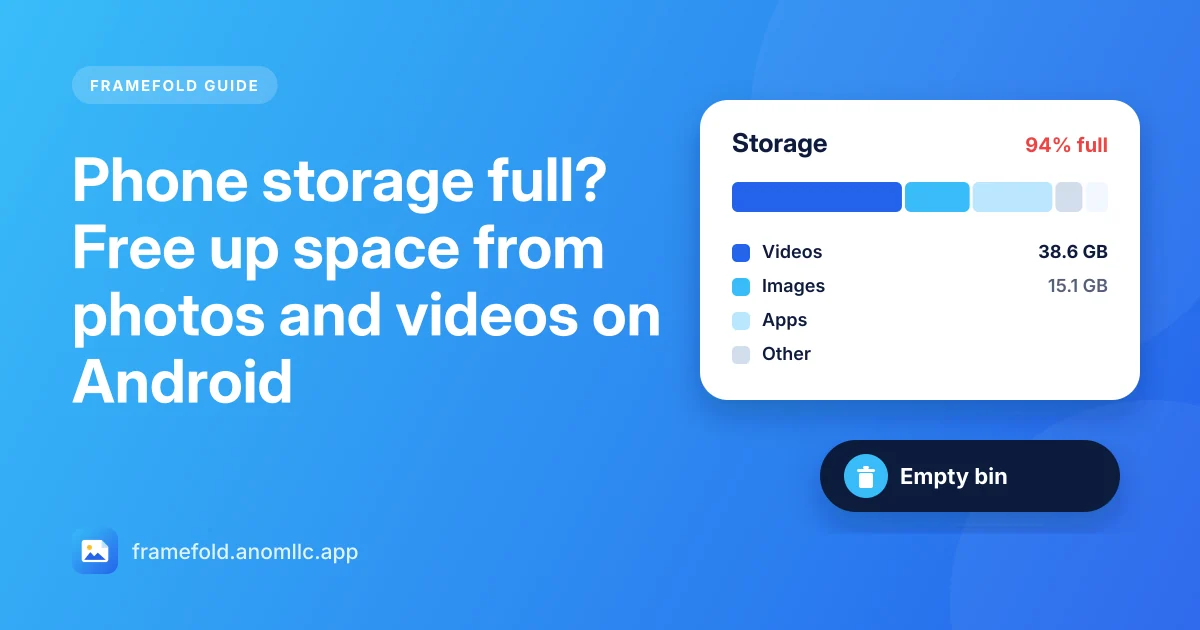
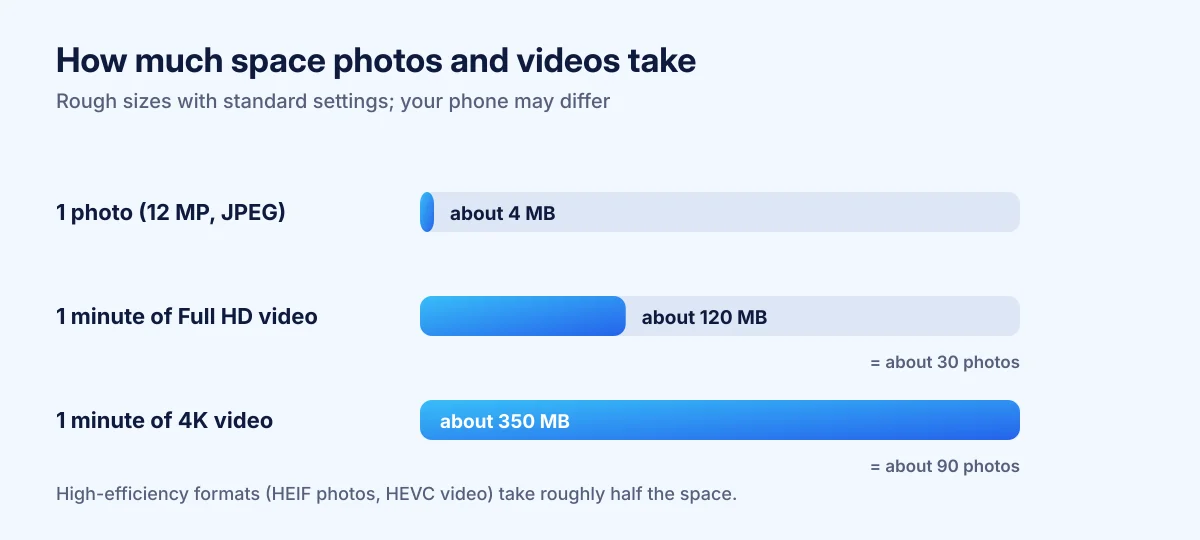
When an Android phone says its storage is almost full, photos and especially videos are usually the reason. One minute of video can take as much space as dozens of photos, so a few long clips matter more than hundreds of pictures. Back up first, start with the videos, and don't forget the last step: empty the bin, or the space doesn't come back.
1. See what is taking the space
Open your phone's Settings > Storage. It shows how much space Images and Videos use compared with apps and other files. If photos and videos are a big part, read on.
2. Back up before you delete
Copy your photos and videos to a computer or a cloud service you trust before a big clean-up (how to copy them to a PC or Mac). Then you can delete freely from the phone.
3. Start with the videos
In Framefold, open the Videos tab: every video on the phone, with its length on each thumbnail. Long clips are the big ones. To check a video's exact size, open it and tap More > Details: you'll see Size, Length and Resolution.
Delete the clips you don't need: press and hold one, tap the others, then tap Delete at the top. Screen recordings and long videos received in chats are good candidates.
4. Clean up the busiest albums
Open Albums, tap the sort button and choose Most items. The folders with the most photos come first. Often that's:
- Screenshots you took once and never looked at again.
- Download and chat folders full of forwarded pictures and memes.
- Camera bursts: five near-identical shots of the same moment.
Open the album, press and hold the first photo, tap Select all, untick what you want to keep, then tap Delete.
5. Empty the bin, or the space doesn't come back
On Android 11 and newer, deleted photos and videos go to the Bin and still take up space for 30 days. To free the space now:
- Open Albums > Bin.
- Check that nothing you want is there. Tap a photo to select it and Restore it if needed.
- Tap Empty bin and confirm: Framefold asks first, then Android.
Once the bin is emptied, those files are gone for good, so make sure your backup is done.
6. Make new photos and videos smaller
- Record video in Full HD instead of 4K unless you really need 4K. In the camera app's video settings, 1080p at 30 frames per second takes a fraction of the space.
- Use "High efficiency" format if your camera offers it. HEIF photos and HEVC videos take roughly half the space of JPEG and standard video at similar quality. (Some older computers need an extra codec to open them.)
- Turn off "save to gallery" in chat apps you use for groups, so every forwarded picture doesn't land in your gallery.
What not to delete
- Folders you don't recognise in a file manager, such as Android/data: apps need them.
- The only copy of a photo you care about. If you're unsure, back it up first; the bin gives you 30 days, not forever.