A slideshow is the easiest way to look back at a trip or a party with friends: the photos change on their own and nobody has to swipe. On Android you can start one from your gallery in three taps. In Framefold, open a photo, tap More and choose Slideshow. Here's how to pick exactly which photos it shows, and how to put it on a TV.
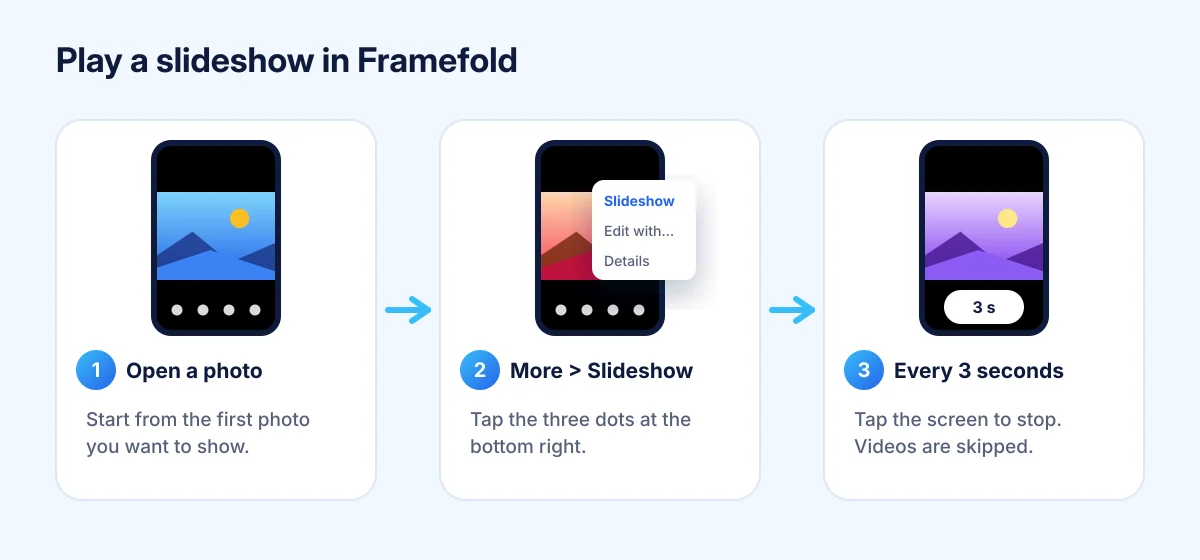
Start a slideshow in Framefold
- Open the first photo you want to show, from Photos, an album or Favorites.
- Tap More (the three dots at the bottom right).
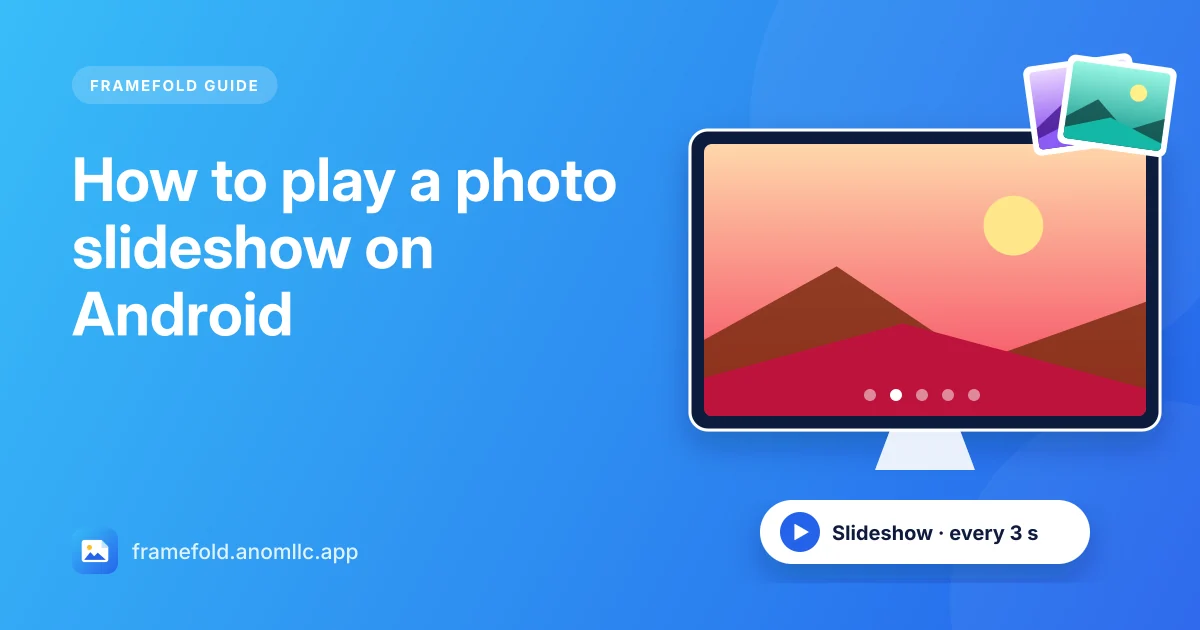
- Tap Slideshow. The buttons fade away and a new photo appears every 3 seconds.
- Tap the screen to stop it at any time, or press Back.
The slideshow follows the list you opened it from, newest to oldest, whether that's Photos, an album or Favorites. Videos are skipped, so a slideshow never stops on a clip. When it reaches the last photo, it stops and the buttons come back. The screen stays on while it plays.
Choose exactly which photos to show
The simplest way to make a slideshow of only some photos is Favorites:
- In Photos, press and hold the first photo you want, then tap the others. Each one gets a check mark.
- Tap the heart at the top. They're now in Favorites.
- Open Albums > Favorites, tap the first photo, then More > Slideshow.
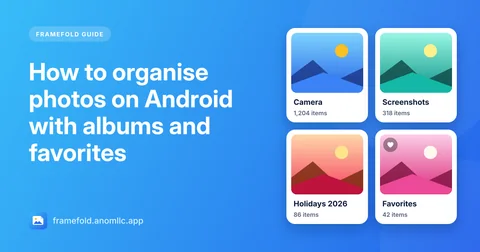
You can also use an album: everything in one folder (for example a "Holidays 2026" folder you made with your phone's Files app) shows up as one album in Framefold. See how to organise photos into albums.
To remove photos from the slideshow later, open them and tap the heart again.
Show the slideshow on a TV
Most Android phones can mirror their screen to a smart TV or a TV streaming stick on the same Wi-Fi:
- Swipe down twice from the top of the screen to open Quick settings.
- Tap Cast, Screen cast, Smart View or Screen mirroring (the name depends on your phone).
- Pick your TV.
- Turn the phone sideways so the photos fill the TV, then start the slideshow.
If you can't find the tile, tap the pencil icon in Quick settings to add it. Older TVs without casting can show the phone's screen through an HDMI adapter, if your phone supports video out over USB-C.
Tips for a better slideshow
- Turn on Do Not Disturb so notifications don't pop up over your photos.
- Hold the phone sideways for landscape photos; with auto-rotate on, Framefold turns with the phone.
- Delete the blurry ones first. In the slideshow you'll see every photo, including the five near-identical shots of the same sunset.
Want a video with music instead?
A slideshow in a gallery plays your photos on the phone. If you want a video file with music and transitions to share, you need a video editing app. Pick your photos there, add music and export the video; it then appears in Framefold under Videos.