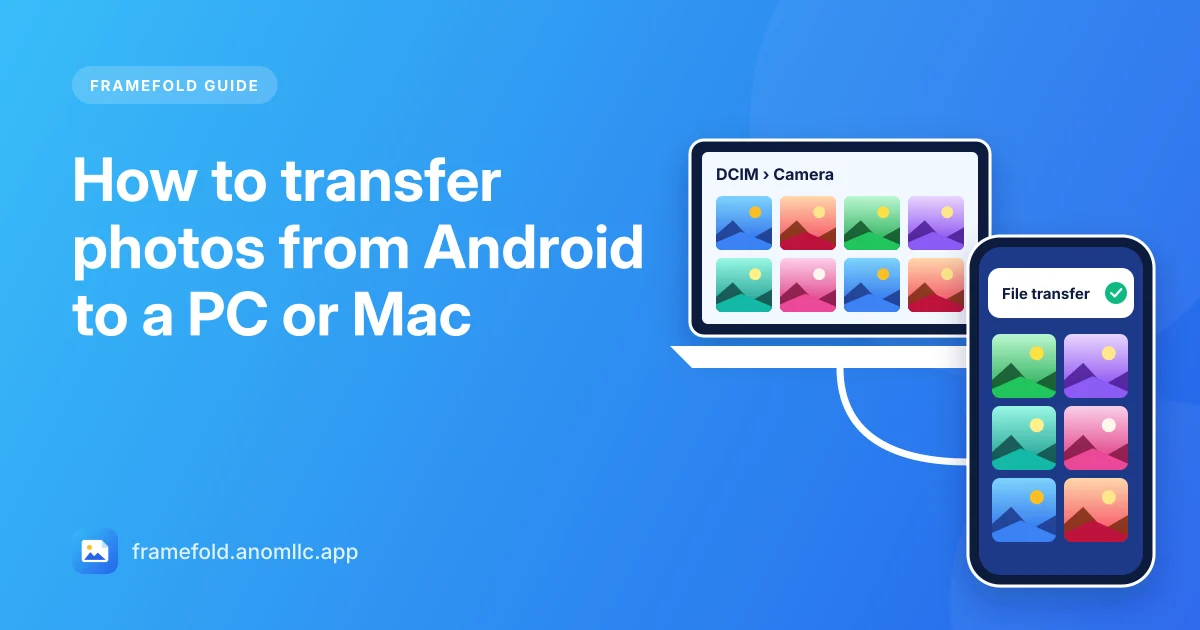
The fastest way to move a lot of photos from an Android phone to a computer is a USB cable: plug the phone in, set USB to File transfer, and copy the DCIM folder. For a handful of photos, sending them without a cable is quicker. Here are both, for Windows and Mac, plus where each kind of photo is stored.
With a USB cable (Windows)
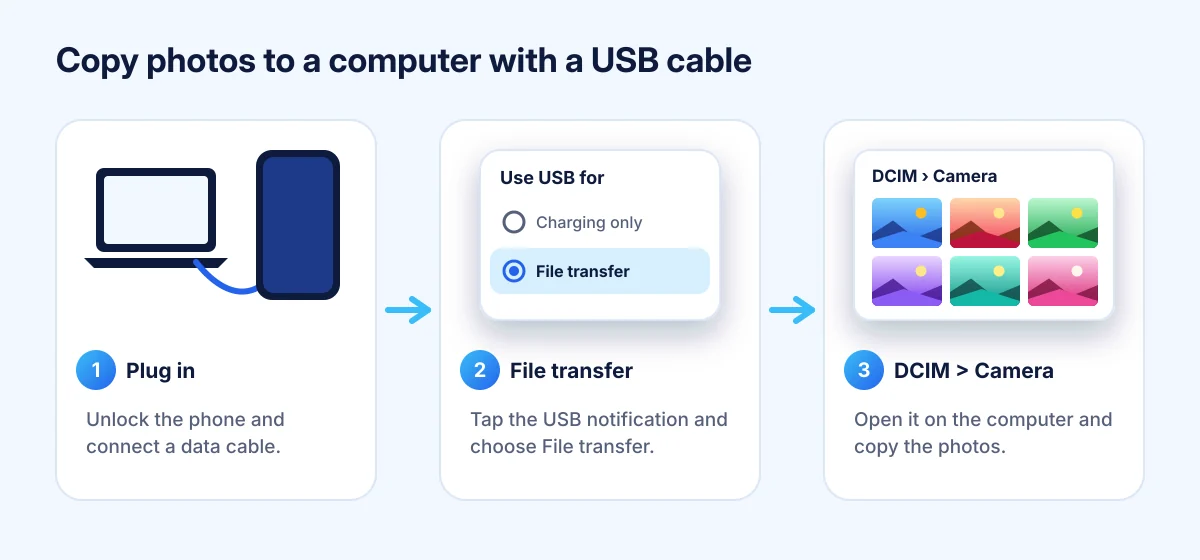
- Unlock the phone and connect it to the PC with a USB cable that carries data (some cheap cables only charge).
- Choose File transfer. Pull down the notification "Charging this device via USB" (or similar), tap it and choose File transfer (sometimes called Transfer files or MTP).
- Open File Explorer on the PC. Your phone appears under This PC. Open it, then Internal storage (or the phone's name).
- Open DCIM > Camera. These are the photos and videos from your camera. Copy them to a folder on the PC.
Windows' Photos app can do it for you too: open it, choose Import, pick your phone and select the photos.
With a USB cable (Mac)
- Unlock the phone, connect it, open the USB notification and choose Transfer photos (PTP). Image Capture sees the phone in this mode.
- On the Mac, open Image Capture (it's in Applications).
- Select your phone on the left, choose a folder at the bottom, select the photos and click Import.
Where your photos are on the phone
| What | Folder |
|---|---|
| Camera photos and videos | DCIM/Camera |
| Screenshots | Pictures/Screenshots or DCIM/Screenshots |
| Downloads | Download |
| Photos saved by chat apps | Usually Pictures, or the app's own folder under Android/media |
| Screen recordings | Movies or DCIM/Screen recordings (depends on the phone) |
In Framefold each of these folders is an album, so you can check what's inside before you copy. Open Albums, open the album and tap More > Details on a photo to see its exact Folder.
Without a cable
For a few photos, sending them is quicker than finding a cable:
- In Framefold, press and hold a photo, then tap the others you want. Each gets a check mark.
- Tap Share at the top.
- Pick how to send them: a nearby-sharing option such as Quick Share (a Windows PC with the Quick Share app can receive), email to yourself, or a cloud storage app you also use on the computer.
Framefold shares up to 500 photos at a time. For more than that, or for long videos, a cable is faster and doesn't use your mobile data.
If the phone doesn't show up on the computer
- Unlock the phone and look for the USB notification again. Many phones go back to "charging only" each time you plug in.
- Try another cable or port. Charge-only cables are the most common cause.
- On Windows, if the phone shows but is empty, unlock it and wait a few seconds, then refresh the folder.
- On a Mac, close any app that might grab the phone (for example a photo library app) and reconnect.
Photos that won't open on Windows
Some phones save photos as HEIF (.heic) to save space. Windows may need the free HEIF Image Extensions from the Microsoft Store to show them. Videos recorded in HEVC may need the HEVC extension. You can also switch your camera to save JPEG in the camera app's settings, usually called "High efficiency pictures".
Copying your photos to a computer regularly is also the simplest backup: if a photo is ever deleted by mistake, you'll have it (what to do if you deleted a photo).