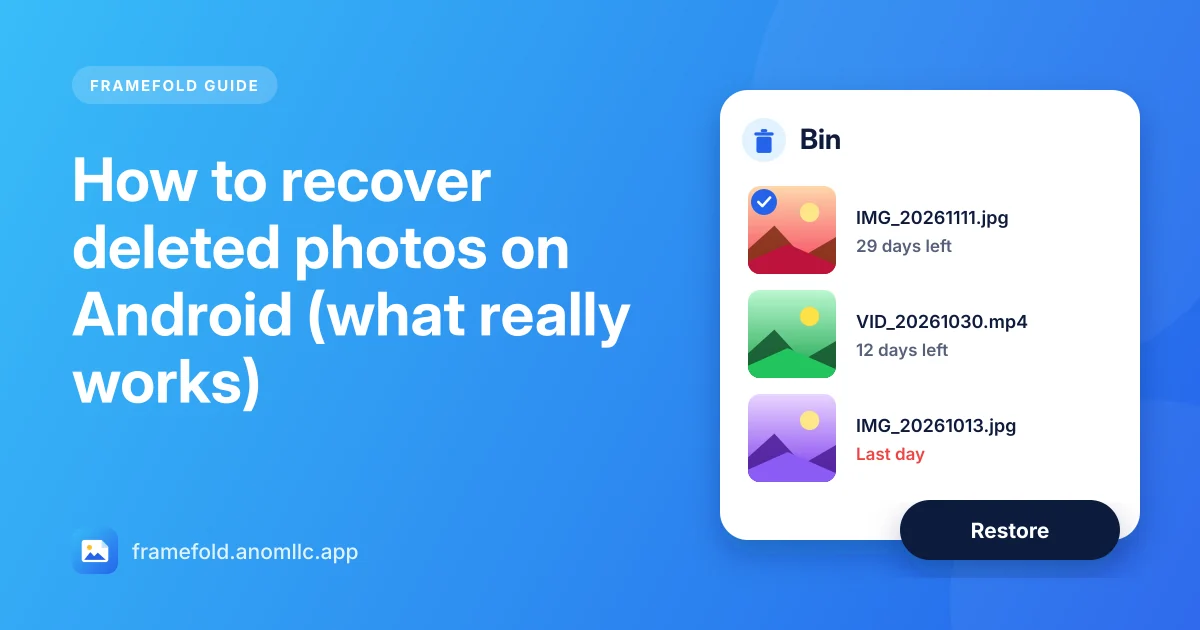
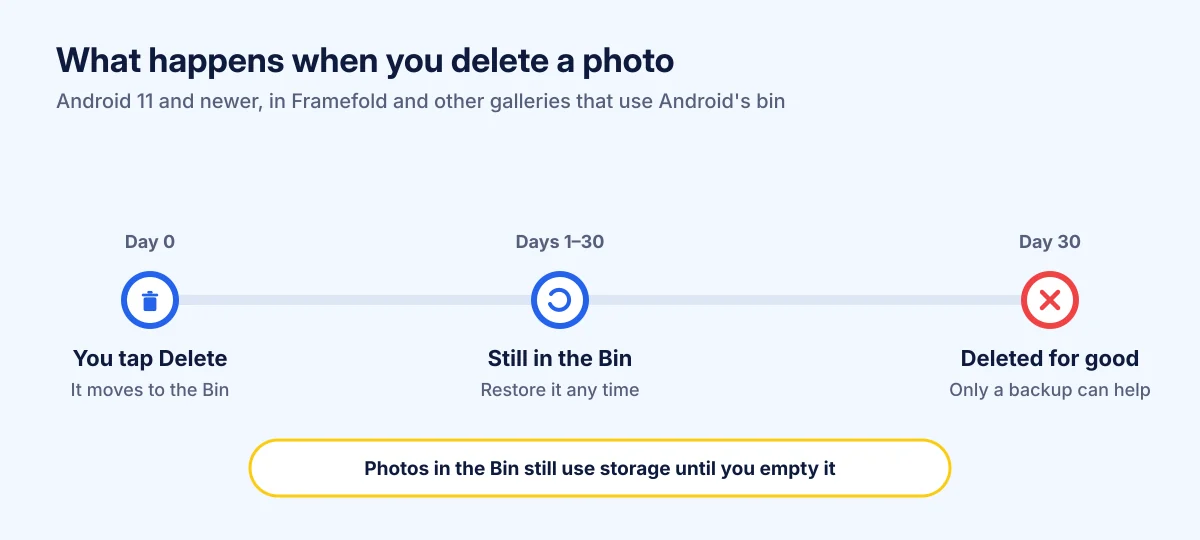
If you deleted a photo in the last few weeks, there's a good chance it is still on your phone. Since Android 11, most gallery apps don't erase a photo straight away: they move it to a bin, where it waits for 30 days. Check the bin first, then your backups, then the chats you sent it in. Recovery apps are the last resort, and on a modern phone they rarely work. Here is the order to try.
1. Look in the bin
In Framefold (Android 11 and newer):
- Open the Albums tab and tap Bin.
- Each photo or video shows how many days it has left.
- Tap the ones you want back. They get a check mark.
- Tap Restore at the top, then allow it when Android asks.
The photos go back to the album they came from, with their original date, so they appear in the right place in your timeline.
Framefold's Bin shows Android's own bin, so it also lists items that other apps moved there through Android. Some gallery apps keep a separate recycle bin of their own instead. If you deleted the photo in another gallery, open that app and look for Bin, Trash or Recycle bin in its menu or albums.
On Android 10 and older there is no system bin: Framefold asks "Delete for good?" before deleting anything, because there is no way back.
2. Check your backups
If your photos are backed up to a cloud service, a copy may still be there even after it's gone from the phone. Deleting on the phone can also delete the backup, depending on the app, so check its own bin too. Google Photos, for example, keeps deleted items in its bin for 30 days (Google's help page).
A computer you once copied your photos to, a USB stick or an old phone are worth checking too.
3. Look in your chats and email
If you sent or received the photo in a chat or an email, it is often still there. Open the conversation, find the picture and save it again. Group chats and the "sent" folder of your email are easy to forget.
4. Photos on a memory card
A microSD card works differently from the phone's own storage. A deleted file on a card can sometimes be recovered with photo recovery software on a computer, as long as nothing new has been written over it.
- Stop using the card straight away: take it out of the phone so no new photos are saved on it.
- Put it in a computer with a card reader and run a photo recovery program.
- Save the recovered photos to the computer, never back onto the same card.
5. Why recovery apps can't help with the phone's own storage
Apps that promise to "recover deleted photos" from your phone's internal storage usually find only old thumbnails, at best. Modern Android phones encrypt their storage, and once a file is deleted for good, its contents can't be read back without the phone's keys for that file. Be careful with apps that ask you to pay before showing what they found.
How to avoid losing photos next time
- Keep a backup. Turn on automatic backup in a cloud photo service you trust, or copy your photos to a computer every month (how to copy photos to a PC).
- Use the bin. Delete from a gallery that moves photos to the bin, so a slip of the finger isn't final.
- Empty the bin on purpose. Photos in the bin still take up space. When you're sure, open Bin and tap Empty bin (more on freeing space).