When photos don't show up in a gallery app on Android, they are almost never gone. Usually the gallery isn't allowed to see them, the folder is marked as hidden, or the pictures live somewhere galleries can't reach: inside a chat app, in the cloud only, or in a private folder. Here are the eight causes we see most, roughly from most to least common, and how to fix each one.
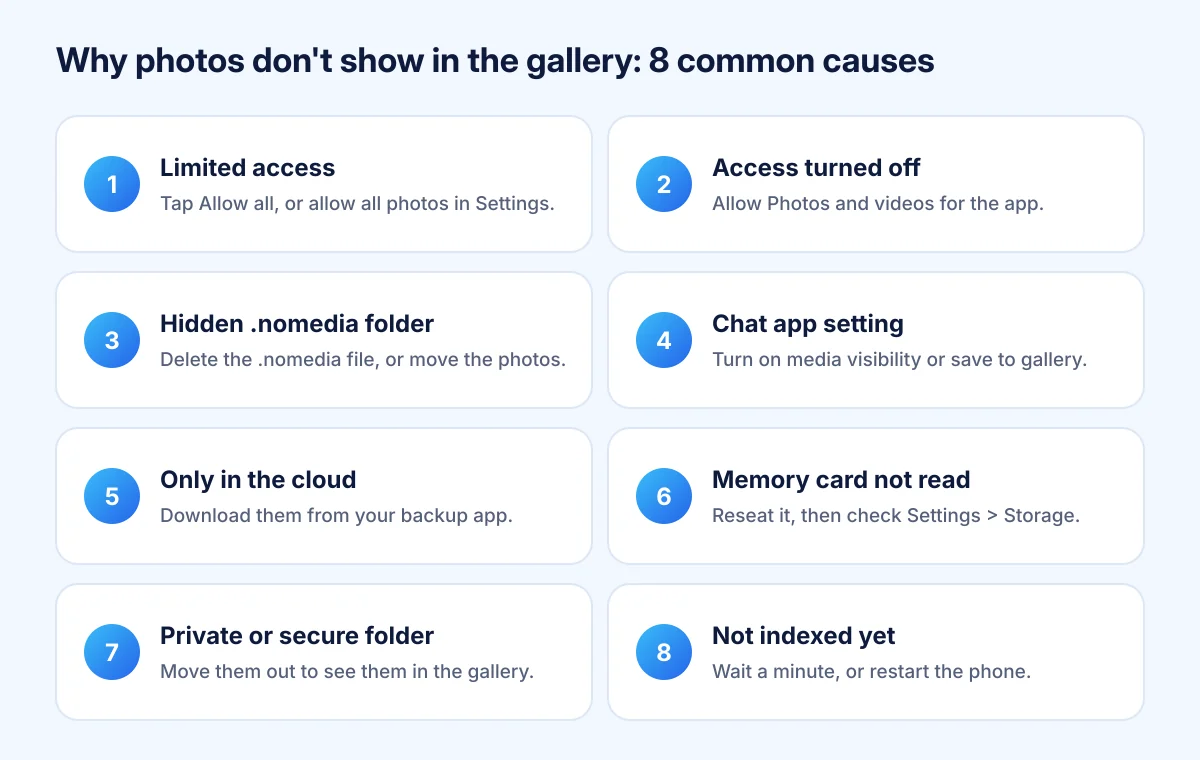
1. The gallery can only see some of your photos
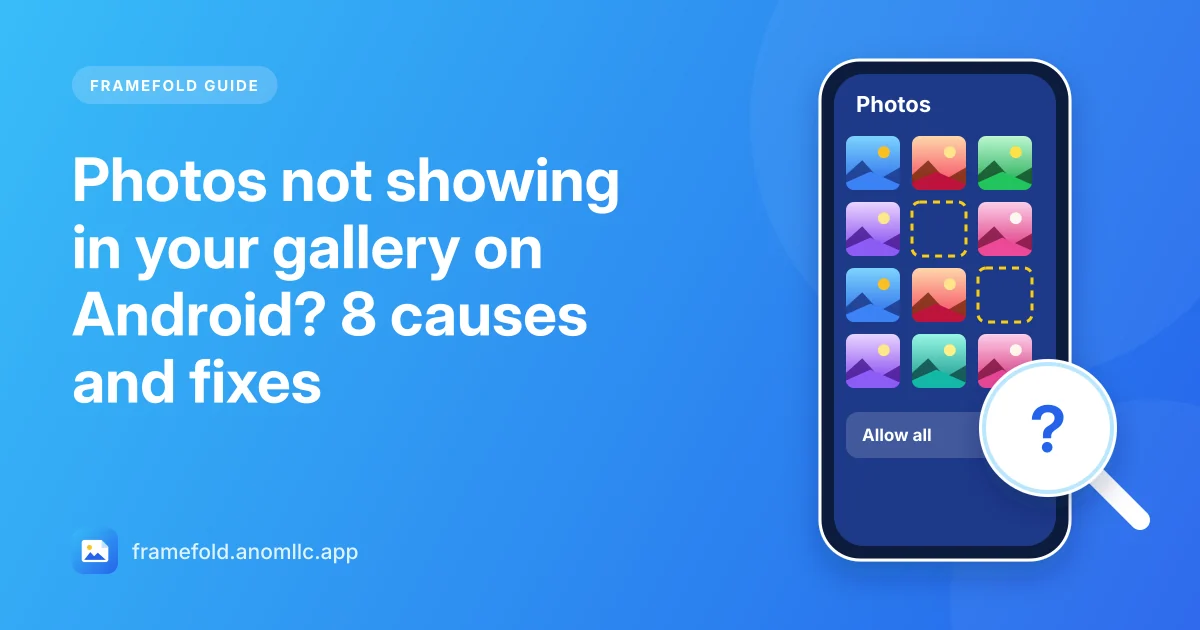
Since Android 14, when an app asks for your photos you can choose Allow all or Select photos and videos. If you picked the second one, the app sees only the pictures you ticked, and every photo you take afterwards stays invisible to it.
Fix in Framefold: a note at the top of Photos says "Framefold can see only the photos you picked". Tap Allow all next to it. You can also go to your phone's Settings > Apps > Framefold > Permissions > Photos and videos and choose Allow all.
2. Access was turned off
If you tapped "Don't allow", or Android removed permissions from an app you hadn't opened for months, the gallery can't read any photos. Framefold then shows Allow access to photos, or Open settings if access was refused before. Allow Photos and videos (on older phones, Files and media or Storage).
3. The folder has a hidden .nomedia file
Android skips any folder that contains a file named .nomedia. Apps create it to keep stickers, thumbnails or game images out of your gallery, but sometimes it ends up in a folder with real photos.
Fix: open your phone's file manager, turn on Show hidden files, open the folder with the missing photos and delete the .nomedia file (or move the photos to a folder such as Pictures). The photos usually appear within a minute; restarting the phone makes Android look again straight away.
4. A chat app keeps received photos to itself
Many messaging apps have a setting that decides whether photos you receive are saved where galleries can see them. It is often called "media visibility" or "save to gallery". If it's off, the pictures show inside the chat but not in any gallery.
Fix: turn that setting on in the chat app (for all chats or one chat). It usually applies to new photos; for older ones, open the photo in the chat and use its save or download option.
5. The photos are only in the cloud
Backup apps can free up space by deleting the copies on your phone once they're backed up. Those photos then appear in the backup app, which shows them from the internet, but not in a gallery that shows what is on the phone.
Fix: open the backup app and download the photos you want on the phone. Framefold shows what is on your phone and never uploads anything.
6. The memory card isn't being read
If the photos were on a microSD card that was removed, loosened, or damaged, they disappear from every app at once.
Fix: check Settings > Storage to see whether the card is listed. Switch the phone off, reseat the card and switch it on again. If the card isn't detected at all, try it in a computer with a card reader before formatting anything.
7. They're in a private or secure folder
Some phones have a private space or secure folder for apps and files you want to keep separate. Photos taken or moved there are hidden from apps outside it on purpose, so they never show in a normal gallery.
Fix: open the private space or secure folder, and use its option to move the photos out if you want them in your main gallery.
8. Android hasn't indexed them yet
Galleries read Android's media index, not the folders directly. Photos copied by some file managers or apps can take a while to be added.
Fix: wait a minute, then close and reopen the app. If they still don't show, restart the phone: Android checks storage again when it starts.
Still can't find them? Search by name
Camera apps name files with the date, like IMG_20261105_143210.jpg or similar. In Framefold, tap Search on the Photos tab and type part of the date (for example 20261105) or part of the folder name. The search ignores capital letters and accents, and looks at file names and album names.
If the photos were deleted rather than hidden, see how to recover deleted photos on Android.